 How-to
How Do You Get Started With Secure Messaging?
Last Updated: November 10, 2026
Quick Summary
Getting started with secure messaging means first identifying which of the three types you need: a consumer encrypted app, a healthcare portal, or Direct Secure Messaging. Then choose an app, register with minimal information, enable two-factor authentication, verify your recipients, and send a test encrypted message. Expect to spend about ten minutes on privacy settings.
- The messaging security market reached $10.4 billion in 2025 and is forecast to hit $11.6 billion in 2026.
- Register with a phone number or email you control long term to avoid losing account recovery access.
- On Android, set battery usage to unrestricted so messages arrive in real time.
- On iPhone, set Show Previews to When Unlocked or Never to hide message text on the lock screen.
- Run a one-week pilot with 3-5 staff before rolling out secure messaging to a whole team.
Table of Contents
- What Secure Messaging Means Before You Sign Up
- Step 1: Choose the Right App and Create Your Account
- Step 2: Verify Recipients and Send Your First Encrypted Message
- Secure Messaging on iPhone and Android: Platform Setup
- Secure Messaging Best Practices for Everyday Users
- Secure Messaging Apps for Business: Onboarding a Team
- Account Recovery, Device Changes, and Lost Phones
- Get Started Free With Yonora
- Frequently Asked Questions
What Secure Messaging Means Before You Sign Up
Getting started with secure messaging begins with one distinction most guides skip: the term covers three different products that share almost nothing except a promise of privacy. The messaging security market reached $10.4 billion in 2025 and is forecast to hit $11.6 billion in 2026, according to Grand View Research's messaging security market report. That growth reflects demand, not clarity. This guide from Yonora cuts through it.
Secure messaging is the practice of sending text, voice, and file messages that only the sender and intended recipient can read, usually through end-to-end encryption that keeps the platform itself out of the conversation.
Before you download anything, work out which of the three types below you need. Picking wrong wastes weeks.
Consumer Apps, Healthcare Portals, and Direct Secure Messaging
- Consumer encrypted apps: You sign up yourself, usually with a phone number or email. Good for family, friends, and small teams. Privacy depends on the provider's design.
- Healthcare portals: Your clinic or hospital creates the account for you. Messages sit inside a system built around HIPAA compliance and audit trails. You cannot choose a different app.
- Direct Secure Messaging: A provider-to-provider standard used in clinical settings. Your doctor gets a secure address, not an app store download.
The three overlap less than people assume. A consumer app will not connect to a hospital portal, and a Direct address is useless for calling your family.
Step 1: Choose the Right App and Create Your Account
Start with the sign-up requirement, because it decides everything else. Our guide to secure messaging without a phone number walks through the full sign-up path.
Here is how we would do it:
- Confirm whether the app needs a SIM card or phone number.
- Check which devices it runs on: phone, tablet, desktop.
- Download from the official app store only.
- Register with the minimum information required.
- Set a strong password and turn on two-factor authentication.
- Complete account activation via the verification code.
- Review privacy settings before adding a single contact.
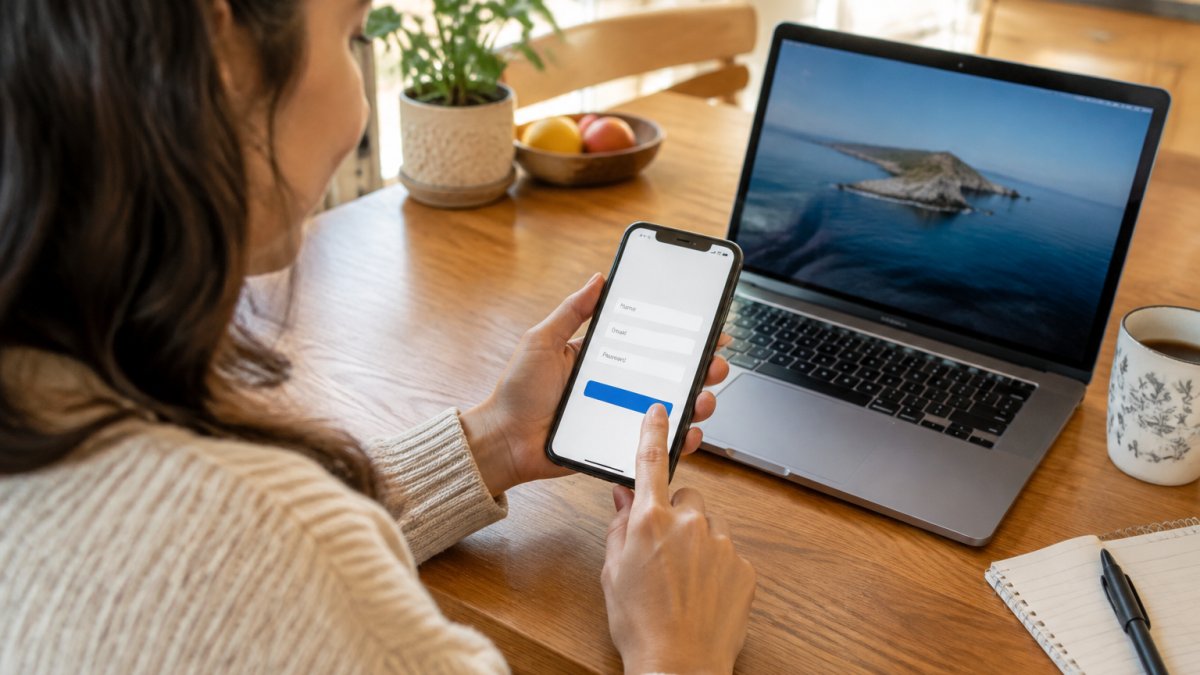
Watch out: registering with a phone number you will lose access to, such as a temporary SIM, can lock you out of account recovery later. Use a number or email you control long term.
Step 2: Verify Recipients and Send Your First Encrypted Message
Your first encrypted message only works if you verify who you are talking to. Recipient verification confirms you have the right person before any sensitive detail changes hands. Skip it and encryption protects the channel, not the identity at the other end.
Verification methods vary by app:
- Safety numbers or security codes: Compare a short code in person or over a call you trust.
- QR code scanning: One person displays a code, the other scans it.
- Verified contact badges: The app confirms a contact matches a known account.
Once verified, send a test message and check three things: a lock or encryption indicator appears, delivery confirms, and notifications arrive on your other devices. Reply from a second device to confirm sync. If the lock icon is missing, stop and check the app's settings before sharing anything private.
Secure Messaging on iPhone and Android: Platform Setup
Setup differs by platform, and the gaps cause most first-week problems. On iPhone, secure messaging apps rely on iOS notification and background refresh permissions. On Android, battery optimization is the usual culprit when messages arrive late.
A 2015 survey of secure messaging research found that earlier evaluations revealed weaknesses in the human-computer interaction side of these tools, meaning security features alone do not guarantee a smooth experience (SoK: Secure Messaging study).
Android Setup and Notification Permissions
On Android, do these in order:
- Install the app and complete registration.
- Allow notifications when prompted.
- Open Settings, then Apps, then your messaging app.
- Set battery usage to unrestricted so messages arrive in real time.
- Enable background data.
- Test by locking the phone and sending yourself a message from another device.
Then handle the privacy settings that matter more than notifications:
- Lock-screen previews: Hide message content on the lock screen. A preview showing the sender and first line defeats encryption for anyone standing next to your phone.
- Cloud backup: Decide whether backups go to Google Drive or stay local. A backup that is not end-to-end encrypted hands your history to the cloud provider, even if live messages are protected.
- Notification history: Android can log notifications in a system history. Check Settings, then Notifications, then Notification history, and turn it off if you do not want a plaintext record of every message.
Watch out: restoring a backup from Google Drive onto a new phone can silently re-import messages the app had deleted, so review backup settings before you migrate.
iPhone Setup and Privacy Settings
On iPhone, check Settings, then Notifications, and confirm alerts are on. Then confirm Background App Refresh is enabled for the app. After that, work through the iOS-specific privacy layer:
- Lock-screen previews: In Settings, then Notifications, then your messaging app, set Show Previews to When Unlocked or Never. The default, Always, shows message text to anyone who picks up the phone.
- iCloud backup: If the app backs up to iCloud, confirm whether those backups are end-to-end encrypted. Standard iCloud backups are not, so message history can be readable by Apple under a legal request even when the app uses end-to-end encryption.
- Siri and search: Disable Siri suggestions and search indexing for the messaging app if you do not want message content surfaced on the lock screen or in Spotlight.
If calls matter, test a voice call and a video call on both Wi-Fi and mobile data before relying on the app. Then put the phone in airplane mode, send a message from another device, and confirm it arrives when you reconnect. That single test catches most background-refresh and battery-optimization problems.
What Encryption Does and Does Not Protect on Mobile
Platform setup is where the limits of encryption become concrete. End-to-end encryption protects the message in transit and on the server, but it does not protect against:
- A compromised device: Malware or a stalkerware app with screen access can read messages after decryption. Encryption cannot defend a phone that is already owned by someone else.
- Unsafe backups: As above, a cloud backup without end-to-end encryption is a plaintext copy of your history.
- Recipient screenshots: The person you message can always capture and share what you send. Disappearing messages reduce the window but do not close it.
The practical question is often not "is this app encrypted?" but "what happens to my messages on this specific phone, with this specific backup setting, if I lose it?"
Secure Messaging Best Practices for Everyday Users
Good habits matter more than app choice. Secure messaging best practices come down to controlling who gets in, what you share, and how you recover.
- Turn on two-factor authentication everywhere it is offered.
- Verify new contacts before sharing anything sensitive.
- Review linked devices monthly and remove ones you do not recognize.
Privacy-conscious readers often ask whether their data is really private. Our breakdown of whether customer data is really private covers what providers can and cannot see. The short version: end-to-end encryption protects message content, but metadata such as who you message and when may still be visible to the platform.
Secure Messaging Apps for Business: Onboarding a Team
Rolling out secure messaging apps for business fails for a reason that has nothing to do with encryption: nobody trains the team, and nobody writes down what "secure" is supposed to mean for this organization. Deployment guidance from Netsfere's secure messaging deployment tips makes the point directly. Employee use and training are separate challenges from choosing an app.
A workable rollout looks like this:
| Phase | What Happens | Time |
|---|---|---|
| Pilot | 3-5 staff test the app on real conversations | 1 week |
| Policy | Write rules on what can and cannot be shared | 1-2 days |
| Training | Show staff verification, file sharing, and device sync | 1 session |
| Rollout | Invite the rest of the team in groups | 2 weeks |
| Review | Check adoption and fix notification issues | Monthly |
Compliance, Encryption, and Privacy Are Three Different Claims
The most common business mistake is treating "HIPAA compliant," "end-to-end encrypted," and "private" as synonyms. They are not, and a provider can honestly claim one while failing the other two.
- HIPAA compliance is a legal standard for handling protected health information in the United States. It requires administrative, physical, and technical safeguards, plus business associate agreements with vendors. A HIPAA-compliant portal can still be readable by the vendor's administrators.
- End-to-end encryption is a technical property: only the sender and recipient hold the keys. A provider can offer end-to-end encryption without being HIPAA compliant, and a HIPAA-compliant system can lack end-to-end encryption.
- Privacy is a policy claim about what the provider does with metadata, logs, and account data. It is the easiest to state and the hardest to verify.
When a vendor says "secure," ask which of the three they mean and for the specific mechanism. A business associate agreement answers the HIPAA question; a published protocol description or independent audit answers the encryption question; a data-retention policy answers the privacy question. If a vendor cannot answer all three in writing, treat the claim as marketing.
What Belongs in the Written Policy
A one-page policy beats a training session nobody remembers. Cover these points explicitly:
- What may be shared: Define which categories of information (client names, health details, financial data, credentials) are allowed in the app and which must stay in a designated system.
- Who may be contacted: Require recipient verification before any sensitive exchange, and name the approved method (safety-number comparison, QR scan, or directory lookup).
- Device rules: State whether personal phones are allowed, whether the app must be behind biometrics, and whether backups to personal cloud accounts are permitted.
Watch out: a policy that forbids personal devices but does not enforce it through device management is a policy that will be ignored within a month.
Verify Before You Roll Out
Before inviting the whole team, run three checks on the chosen app:
- Recipient verification test: Have two pilot users verify each other using the app's method, then confirm the verification badge persists after a reinstall.
- Backup test: Send a message, back up the device, restore to a second device, and confirm whether the message survives and whether the backup was encrypted.
- Revocation test: Remove a pilot user's device from the account and confirm the old device can no longer receive messages.
For a ranked look at options, see our list of the best private messaging apps for business. Small teams should start with one app, not three. Consolidating chat, calls, and file sharing into a single platform removes the "which app was that in?" problem entirely. Yonora, for example, runs on phones, tablets, and computers with no SIM required, which suits teams spread across devices.
Account Recovery, Device Changes, and Lost Phones
Recovery is where secure messaging gets uncomfortable, and most guides avoid it. Strong encryption means the provider often cannot restore your history for you. Plan for a lost phone before it happens.
- Set up a backup method now: recovery email, backup phrase, or linked device.
- Link a second device: a tablet or laptop keeps your account reachable if the phone disappears.
- Know the re-registration process: most apps let you move your account to a new phone using your number or backup.
If you are switching phones, our guide to syncing messaging across devices covers the transfer step by step. One healthcare case study of secure messaging evaluation found that app selection alone was not enough; the surrounding process mattered just as much (Evaluation of Secure Messaging Applications for a Health System).
Get Started Free With Yonora
The hardest part of getting started with secure messaging is not the download.
Yonora is built for exactly that starting point. It is free, private by design, and works on any phone, tablet, or computer with no SIM card needed.
Get started free with Yonora and keep every conversation in one private place.
Most people put off secure messaging because it feels like one more app to manage. It does not have to be.
Frequently Asked Questions
How do I get started with secure messaging?
Pick a service that fits your use case, install it on your phone or computer, then create an account. Most secure messaging apps ask for a phone number or an email address, and some let you register without a SIM card. After registration, verify your contacts before sending anything sensitive, check that encryption is switched on, and set a screen lock on the device itself. The whole setup usually takes under ten minutes.
What should I look for in a secure messaging app?
Check four things: whether messages are end-to-end encrypted by default, how the app handles account recovery and lost devices, whether it works across phones, tablets and computers, and what data the provider can see. For work use, confirm the app supports access controls and an audit trail. For healthcare, confirm HIPAA compliance. Also check whether recipients need the same app, because interoperability decides who you can actually reach.
How do I use secure messaging on an iPhone or Android phone?
On iPhone, install the app from the App Store, allow notifications, and enable any biometric lock the app offers. On Android, install from Google Play, grant notification and storage permissions only where needed, and check battery optimisation settings so messages arrive on time. On both platforms, turn on the device passcode and keep the operating system updated. Secure messaging on iPhone and Android follows the same account, so conversations sync when you switch devices.
How can a business introduce secure messaging to its team?
Start with a small pilot group, write a short policy covering what can and cannot be shared, and train staff on the app separately from the rollout itself. Deployment guidance from Netsfere notes that employee training is a distinct challenge from choosing the app. Enable access controls, review the audit trail, and set a clear process for offboarding staff so message history stays with the business rather than the individual.