 how-to
How to Sync Messaging Across Devices: 2026 Guide
Last Updated: October 23, 2026
Quick Summary
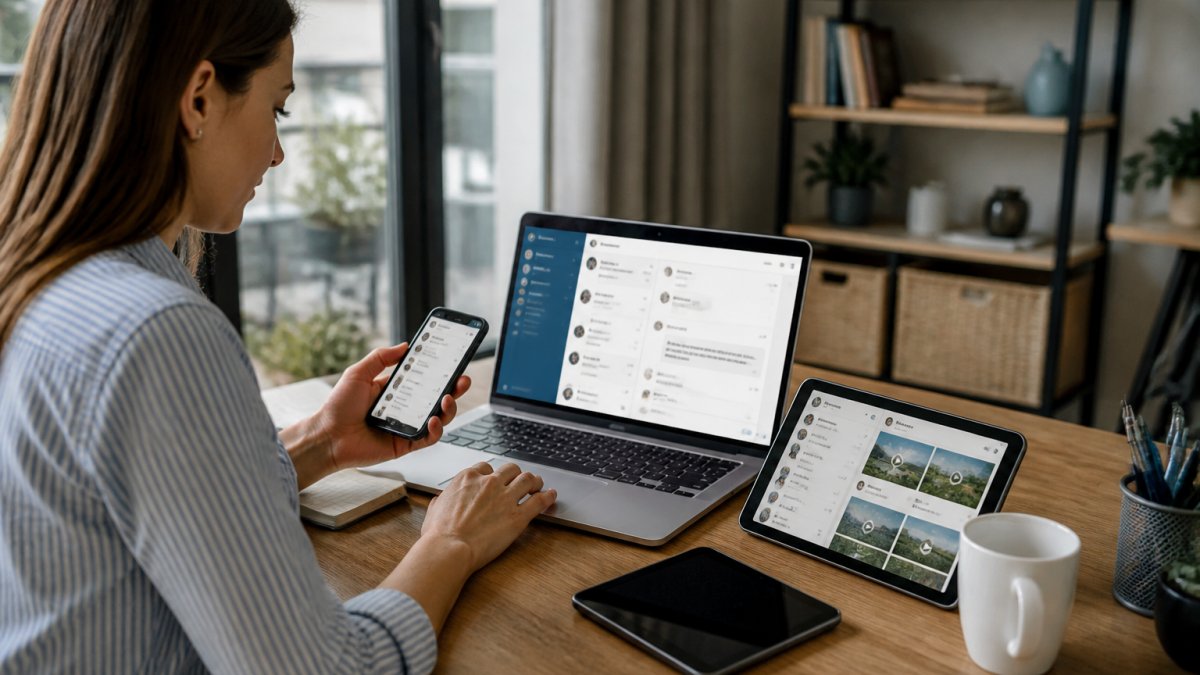
To sync messaging across devices, sign every device into the same account and turn on the sync setting for your app, such as Messages in iCloud for iMessage or device pairing for Google Messages. Sync keeps one live conversation mirrored on each device, so read state and deletions carry across all of them.
- Sync mirrors the live conversation, while forwarding copies only new messages and backup stores a snapshot.
- Messages in iCloud requires the same Apple ID and must be enabled manually in Messages settings.
- Google Messages pairs your phone with other screens, and the phone must stay online for the mirror to work.
- Failed syncs usually trace to a different account, weak connection, full storage, or sync switched off.
- Audit your device list monthly and turn on two-factor authentication to limit sync privacy risks.
Table of Contents
- Sync, Forward, or Back Up: What Each One Actually Does
- How to Sync iMessage Across Devices
- How to Sync Google Messages Across Devices
- Syncing Messages Between Two Phones and Other Devices
- Messages Not Syncing Across Devices: Troubleshooting by Symptom
- Privacy Risks and Secure Messaging Across Devices
- Conclusion
- Frequently Asked Questions
Sync, Forward, or Back Up: What Each One Actually Does
Most people use "sync messaging" to mean three different things, and that confusion causes most of the frustration. Message syncing keeps the same conversation visible and up to date on every device signed into your account. Forwarding sends a copy somewhere new. Backup stores an archive you restore later. They sound similar and behave nothing alike.
Here is the difference in plain terms, with what each one actually preserves:
- Sync: One conversation, many screens. The message lives in the cloud account, and each device reads from that same source. Read a thread on your phone, open your laptop, it is already there, including the read state. Delete on one device and it disappears everywhere. Sync preserves the live conversation, not a copy.
- Forwarding: A copy of each incoming message is sent to another number, email address, or device. The original stays put, and the copy is a separate message. Forwarding preserves new messages only, it does not carry history, read state, or deletions. It is a one-way pipe, not a mirror.
- Backup: A stored snapshot taken at a point in time. It does not update live, it does not appear as a conversation on another device, and it only helps when you restore it, usually onto a new phone after a wipe or upgrade. Backup preserves history, but only as of the last backup.
That distinction matters because each one depends on a different mechanism. Sync depends on an account (Apple ID, Google account, or an app login). Forwarding depends on a carrier setting or an app-level rule.
A quick way to remember which one you need:
| You want to... | Use |
|---|---|
| See the same thread on phone, tablet, and laptop | Sync |
| Get a copy of new texts on a second number or device | Forwarding |
| Recover history after losing or replacing a phone | Backup |
| Keep history and live access | Sync plus a periodic backup |
Two practical consequences follow. First, sync and backup are not substitutes, sync mirrors deletions, so a synced account with no backup can lose history permanently if a thread is deleted by mistake. Second, forwarding is the only one of the three that works across platforms without a shared account, which is why it is the usual fallback for iPhone-to-Android setups.
At Yonora, we built messaging to work the same way on any phone, tablet, or computer, with no SIM card required. That design choice removes most of the cross-device headaches described below.
How to Sync iMessage Across Devices
iMessage syncs through your Apple ID, not your phone number. Turn on Messages in iCloud and every device signed into the same account shows the same threads. Apple's own setup documentation confirms this feature must be enabled manually inside Messages settings.
Step-by-Step: Messages in iCloud Setup
- Open Settings and tap your name at the top.
- Tap iCloud, then Messages (you may need to tap "Show All" first).
- Turn on Sync this iPhone (or iPad/Mac).
- On a Mac, open Messages → Settings → iMessage and tick Enable Messages in iCloud.
- Wait for the initial upload. Large histories can take a while on slow Wi-Fi.
Two things trip people up. First, every device needs the same Apple ID. Second, deleting a thread on one device deletes it everywhere once sync is on. That is sync working as designed, not a bug.
How to Sync Google Messages Across Devices
Google Messages pairs your phone with a browser or tablet rather than syncing through a cloud account. Your phone stays the hub, and other screens mirror it. Google's support forums show this pairing model still causes confusion in 2026, especially with multiple numbers.
Using Messages for Web and Device Pairing
- On your phone, open Google Messages and tap your profile icon.
- Choose Device pairing.
- On your computer, go to messages.google.com/web.
- Scan the QR code with your phone.
- Tick "Remember this computer" if it is a device you trust.
Your phone must stay online and connected for the mirror to work. Close the phone, lose signal, or let the battery die, and the web session goes dark. This is the single biggest limitation of the Google approach.
For a second phone, the cleanest route is signing both into the same Google account and using Messages for web on the secondary device's browser.
Syncing Messages Between Two Phones and Other Devices
Moving between two phones is where platform differences bite hardest. The right method depends on which two devices you are bridging, so work from the pairing, not from a single universal instruction.
iPhone to iPhone
Same Apple ID, Messages in iCloud on for both devices, and the threads appear on both. The first device to enable sync uploads the history; the second downloads it. Expect the initial sync to take minutes to hours depending on history size and Wi-Fi speed. Deleting a thread on either phone deletes it on both, that is sync, not a bug.
Android to Android
Sign both phones into the same Google account. Google Messages itself does not sync SMS history between two phones the way iMessage does; the practical routes are:
- Google One backup (Settings → Google → Backup) to carry SMS/MMS to a new phone during setup.
- Messages for web on the secondary device's browser, paired to the primary phone, a mirror, not a true sync, and the primary phone must stay online.
- A third-party SMS backup app to export and restore history as a file.
Carrier Rich Communication Services (RCS) support varies by carrier and region, so do not assume a feature that works on one network will work on another.
iPhone to Android (and back)
There is no native sync between the two. Your realistic options are:
- Carrier-level text forwarding. Most major carriers offer a forwarding feature that copies incoming SMS to another number, sometimes as a paid add-on. It forwards new messages only, no history, no read state, no deletions. Check your carrier's support pages for the exact feature name, since it differs by provider.
- A third-party messaging app on both devices that syncs by account rather than by device. This is the only route that gives a true shared conversation across platforms.
- Manual export and restore. Export the old phone's history as a file and import it on the new device. This preserves history but is a one-time copy, not a live sync.
What happens to history during a switch
Before you wipe or trade in a device, export your message history. Most platforms let you save a chat archive as a file. Once the old phone is gone, that history usually goes with it unless it was backed up or synced to an account. If you rely on sync alone, remember that deleting a thread on the new phone will delete it on the old one too, so take a backup first if the history matters.
Messages Not Syncing Across Devices: Troubleshooting by Symptom
Diagnose by symptom, not by guessing. Messages that fail to sync usually trace to one of four causes: a different account, a weak connection, full storage, or sync switched off on one device. Work through the table below before you change any settings.
| Symptom | Likely Cause | Fix |
|---|---|---|
| Nothing appears on the new device | Different account signed in | Sign into the same account on both |
| Messages arrive late | Weak Wi-Fi or mobile data | Switch networks, retry |
| Sync stops after a while | Cloud storage full | Free up space, then re-enable |
| Old threads missing | Sync was off during setup | Turn on sync, wait for upload |
| Deletes appear everywhere | Sync working normally | Expected behavior, not an error |
Missing Messages, Sync Delays, and Storage Errors
Start with the account.
Next, check the connection. Toggle airplane mode on and off, then reopen the app.
Then look at storage. Cloud sync needs room to hold your message history.
Finally, force a refresh. Sign out of the messaging account and back in.
If messages still will not appear, remove the device from your account's device list and add it again.
Privacy Risks and Secure Messaging Across Devices
Every device you add is another place your messages can be read. That is the trade nobody mentions in setup guides.
Three risks deserve attention:
- Shared devices. A synced tablet in a family kitchen exposes every thread.
- Old devices. A sold phone still signed into your account keeps receiving messages.
- Weak logins. One reused password unlocks the whole sync chain.
Audit your device list monthly. Remove anything you no longer use. Turn on two-factor authentication everywhere it is offered.
For secure messaging across devices, pick an app built with privacy as the default, not an add-on. Yonora is private by design and works without a phone number, which means a lost SIM cannot be used to hijack your account.
Conclusion
Cross-device messaging breaks for predictable reasons: mismatched accounts, weak connections, full storage, and sync left switched off. Fix those four and most problems disappear.
If you want sync that simply works without QR codes or a phone left running, try Yonora. It runs on any phone, tablet, or computer, needs no SIM card, and keeps your conversations private by design.
Get started free and pick up every thread on whichever screen is closest.
Frequently Asked Questions
Why are my messages not syncing across devices?
The most common causes are a disabled sync setting, a different account signed in on each device, or a weak internet connection. On iPhone, check that Messages in iCloud is turned on under your Apple ID settings. On Android, confirm you are signed into the same Google account and that RCS is active. If messages not syncing across devices persists, sign out and back in, then restart the device. Storage limits and outdated app versions can also block sync.
How do I sync text messages between two phones?
True sync between two phones requires both devices to share the same account and cloud service. On iPhone, sign into the same Apple ID and enable Messages in iCloud on both. On Android, use the same Google account and turn on chat backup in Google Messages. If you are moving to a new phone, use the transfer tool during setup. For cross-platform moves, export your message history first, because SMS and MMS do not sync between iOS and Android natively.
Can I sync messages between an Android phone and a computer?
Yes. Google Messages offers a web app that pairs your phone with a browser using a QR code, so you can send and receive texts from your computer. The phone must stay connected to the internet. For a more permanent setup, apps like Yonora run natively on phones, tablets, and computers, keeping message history in sync without pairing a browser session each time.
How can I keep messages private when syncing across devices?
Start by reviewing the device list in your account settings and removing any device you no longer use. Turn on two-factor authentication, and avoid syncing on shared or public computers. Check whether your provider offers end-to-end encryption for synced messages, since cloud backups can be less protected than the live conversation. Yonora is private by design and works without a SIM card, which limits exposure of your phone number across devices.