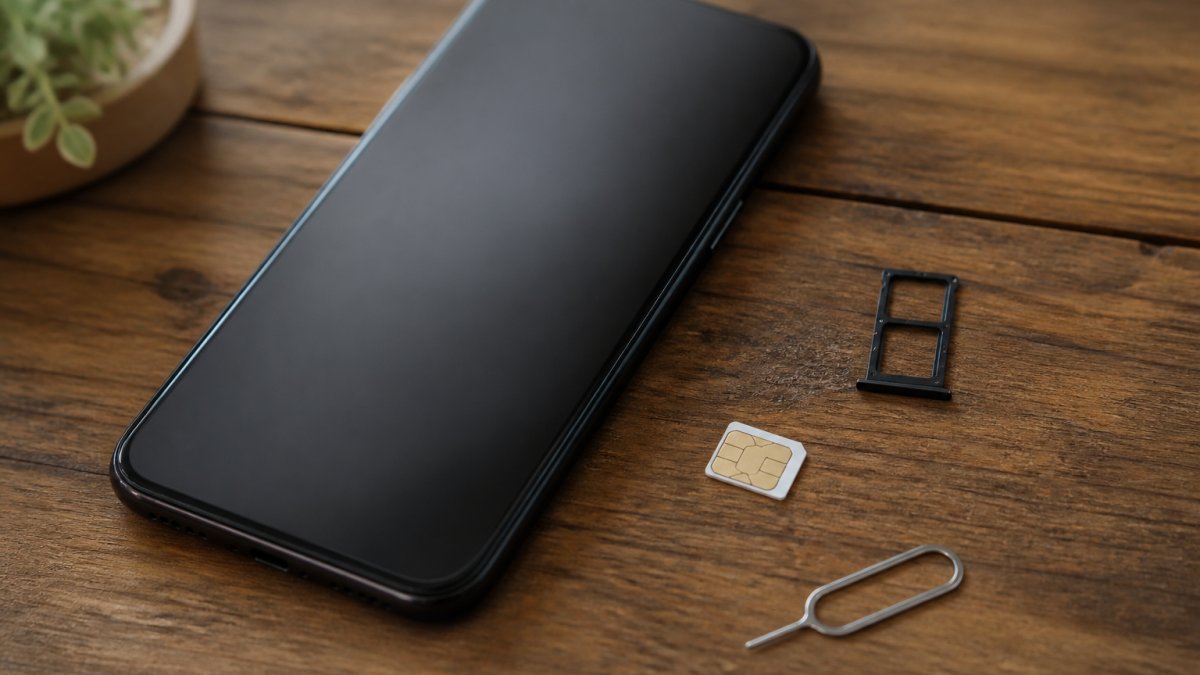
 blog
blog
Best Messaging Apps Without SIM Card: 2026 Guide
Table of Contents
- Why You Don't Need a SIM Card to Stay Connected
- Quick Comparison: Best Messaging Apps Without a SIM Card
- Messaging Apps That Don't Require a Phone Number
- Apps for Calling Without a SIM Card
- Offline Mesh Messaging Apps for No-Internet Zones
- Secure Messaging Apps: Encryption and Privacy Trade-offs
- Setting Up a Wi-Fi-Only Phone Step by Step
- Which App Fits Your Situation?
- Frequently Asked Questions
Last Updated: October 18, 2026
Why You Don't Need a SIM Card to Stay Connected
A SIM card identifies you to a mobile network. That's its only job. It is not a requirement for messaging, and it hasn't been for years.
This guide from Yonora covers the best messaging apps without sim, so you can pick one that fits how you actually communicate.
The distinction matters more than most guides admit. Three different problems get lumped together: no SIM, no phone number, and no internet.
No SIM, No Phone Number, No Internet: What's the Difference?
No SIM means your phone has no cellular identity.
No phone number is a stricter problem. Many apps verify you by text message to a number. Without one, signup stalls.
No internet is stricter still. Only mesh apps that use Bluetooth or a local network can help here.
Most people searching for messaging apps without sim actually have the first problem.
Quick Comparison: Best Messaging Apps Without a SIM Card
The table below summarizes the options in this guide by signup requirement, platform, and best use case.
| App type | Phone number needed? | Platforms | Best for |
|---|---|---|---|
| Yonora | No | Phone, tablet, computer | Calls, groups, business chat |
| Username-based messengers | No | Android, iPhone, desktop | Privacy-focused users |
| Email-signup messengers | No | Android, iPhone, web | Tablet and Wi-Fi-only users |
| Wi-Fi calling apps | Yes, usually | Android, iPhone | Cheap international calls |
| Mesh apps | No | Android, iPhone | No-internet zones |
One pattern stands out. Apps built around a username or email address skip the SIM problem entirely. Apps built around a phone number cannot.
Messaging Apps That Don't Require a Phone Number
The best messaging apps that don't require a phone number let you sign up with a username or email address instead. That single design choice decides whether a tablet, an old phone, or a laptop can run the app on its own. This section goes app by app, because the signup screen is where most people get stuck, and the difference between 'no SIM' and 'no number' is exactly what generic listicles blur together.
Yonora
Yonora is our top pick for this group. It works on any phone, tablet, or computer with no SIM and no phone number. You get free HD voice and video calls, voice notes, and group chats in one app. Privacy is built in by design, and the Yonora AI features help with translation and replies.
- Signup requirement: username or email, no SMS verification step.
- Platforms: Android, iPhone, tablet, desktop, web.
- Best for: Wi-Fi-only devices, families calling abroad, small-business chat.
Username-based messengers (privacy-first group)
Apps in this group, the ones privacy advocates recommend, typically ask you to pick a handle and set a password. No phone number, no email required in many cases.
- Signup requirement: username only.
- Verification: none by SMS; some ask for a recovery phrase or PIN you must store yourself.
- Platforms: Android, iPhone, desktop.
Email-signup messengers
These apps confirm your email address instead of texting a code. They run well on tablets and Wi-Fi-only phones because the confirmation link arrives in your inbox, not your SMS app.
- Signup requirement: email address.
- Verification: click a link in the confirmation email.
- Platforms: Android, iPhone, web.
Number-based apps (avoid if you have no SIM)
Most mainstream messengers fall here. They send a verification code by SMS at signup, and you cannot get past that screen without a working number. Some let you receive the code on a landline via voice call, but that still requires a number you can answer.
- Signup requirement: phone number.
- Verification: SMS or voice code.
- Fails when: the device has no SIM and no number attached.
Business chat tools
Customer-messaging platforms usually onboard you with an email address plus a workspace invite from an admin.
- Signup requirement: email plus invite.
- Verification: email confirmation.
- Best for: teams answering customer questions from a website chat widget.
If you have no number at all, stay in the username-based or email-signup groups. If you have a number but no active SIM, a number-based app may still work if you can receive the SMS on another device, but that is a workaround, not a no-SIM solution.
Apps for Calling Without a SIM Card
Apps for calling without a SIM card fall into two groups. The first makes calls over Wi-Fi to other app users, free.
Yonora sits in the first group.
The second group is useful when you must reach a landline or a business.
A common mistake is judging call quality on a weak Wi-Fi signal. Test on a stable network before you blame the app.
Offline Mesh Messaging Apps for No-Internet Zones
Offline mesh messaging apps send messages device to device using Bluetooth or a local Wi-Fi network. No SIM, no cell service, no internet connection required.
They work well in three situations:
- Festivals and stadiums where the network is overloaded
- Remote areas with no coverage
- Disaster zones where towers are down
The limits are real. Range is short, often tens of metres per hop. Messages relay through other users running the same app.
Treat mesh apps as a backup channel, not a replacement for a normal messenger.
Secure Messaging Apps: Encryption and Privacy Trade-offs
Secure messaging apps protect message contents with end-to-end encryption, which means only the sender and receiver can read them. But encryption is only half the privacy story.
The other half is metadata: who you talked to, when, and how often. Some apps collect little of it. Others collect a lot. Read the privacy policy before you trust any app with a sensitive conversation.
Also check data collection for account recovery. An app that stores your email and device details has more to leak than one that stores a username only.
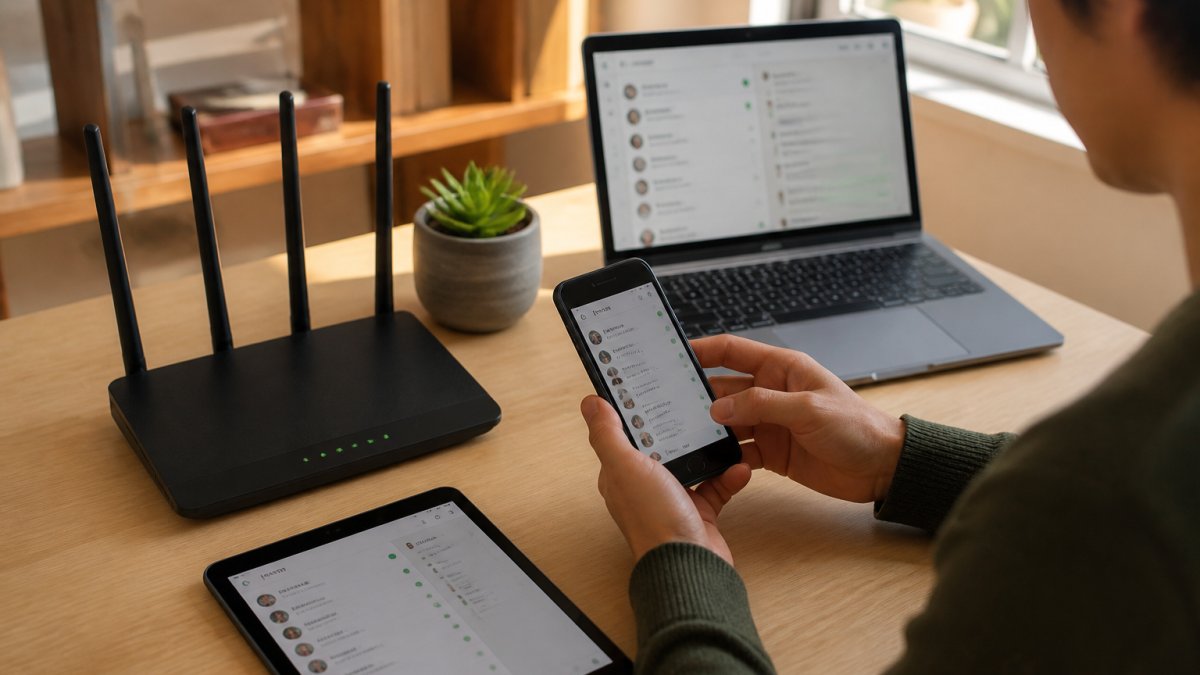
Setting Up a Wi-Fi-Only Phone Step by Step
Setting up a Wi-Fi-only phone takes about ten minutes if the device is in good shape, and considerably longer if it is an old handset that has been sitting in a drawer. This walkthrough covers both cases, because most guides assume a new device and skip the preparation that actually trips people up.
What you'll need: a phone or tablet, a stable Wi-Fi connection, and an email address. A charger is not optional on older devices.
Before you start: prepare the device
- Charge to at least 50%. Long app downloads and OS updates drain older batteries fast, and a device that dies mid-setup can leave the app in a half-installed state.
- Connect to Wi-Fi and confirm the browser loads a page. If the captive portal on public Wi-Fi blocks you, sign in through the browser first.
- Update the operating system. Apps increasingly require a recent Android or iOS version; an old OS is the most common reason an install fails.
- Check free storage. Messaging apps plus their media caches need room; clear photos and old downloads if the device is tight.
- Remove or disable the old SIM tray prompt. Some Android devices nag about a missing SIM on every boot; disabling the carrier setup notification stops the interruptions.
Install and sign up
- Download your chosen app from the official store, Google Play or the App Store, not a third-party APK site.
- Sign up with a username or email, not a phone number. If the app's first screen asks for a number, back out and pick one from the no-number group above.
- Complete email verification in the browser, not the mail app, if the confirmation link opens slowly on the device.
Configure it to behave like a phone
- Turn on notifications and disable battery optimization for the app. On Android, set the app to "Unrestricted" in battery settings; on iPhone, enable Background App Refresh. Without this, messages arrive only when the screen is on.
- Grant microphone and camera permissions so voice and video calls work on the first try.
- Test a voice call and a video call on the same network. If call quality is poor, test again on a different network before blaming the app, a weak Wi-Fi signal is the usual culprit.
- Add contacts and set up any group chats you need. Import from your email contacts if the app supports it, since there is no SIM phonebook to pull from.
Expected result: you can send messages, share files, and make calls with no SIM in the device.
Troubleshooting the common failures
- The app keeps asking for a phone number. You picked a number-based app. Switch to a username or email option.
- Messages arrive late or only when you open the app. Battery optimization is killing the background process. Re-check step 9.
- Calls connect but audio cuts out. Test on a 5 GHz Wi-Fi band if your router offers one; 2.4 GHz is more crowded.
One caveat worth stating plainly: any app that relies on the internet fails when the internet fails, and Wi-Fi messaging does not support emergency calling. Keep a mesh app installed if you travel to remote areas, and do not rely on a Wi-Fi-only phone as your only way to reach emergency services.
Which App Fits Your Situation?
Match the app to your actual constraint, not the marketing copy.
- Old phone or tablet, Wi-Fi only: Yonora or another username-based messenger.
- No phone number at all: apps with email or username signup only.
- Calling family abroad for free: an app with HD voice and video over Wi-Fi.
If you are unsure, start with the no-SIM, no-number option. It covers the widest range of devices and situations.
One caveat worth stating plainly: any app that relies on the internet fails when the internet fails. Keep a mesh app installed if you travel to remote areas.
Frequently Asked Questions
Can you send text messages without a SIM card?
Yes, but not through your carrier's SMS service. Without a SIM card you cannot send standard SMS or MMS texts over a cellular network. Instead, you use messaging apps that send messages over Wi-Fi or an internet connection. Apps like Yonora, along with other cross-platform messengers, let you send text, voice notes, photos, and files as long as you have Wi-Fi or mobile data. The recipient also needs the same app installed, since these messages travel over the internet rather than the phone network.
Which messaging apps let you sign up without a phone number?
Several messaging apps that don't require a phone number let you register with an email address or a username instead. This suits tablets, old phones, and privacy-conscious users who don't want to share a number. Signup requirements vary: some apps still ask for phone verification, while others accept email only. Check each app's registration flow before committing, because a number-free signup often comes with fewer recovery options if you lose access to your account.
Are messaging apps without a SIM card secure?
Security depends on the app, not on whether a SIM card is present. Many secure messaging apps use end-to-end encryption, which means only you and the recipient can read messages. Look for apps that encrypt messages by default, publish details about their privacy practices, and collect minimal metadata. A SIM-free setup can actually improve privacy, since you avoid tying your account to a phone number that can be linked to your identity. Read the privacy policy before trusting any app with sensitive conversations.
Can you use messaging apps on a tablet without a SIM card?
Yes. Wi-Fi-only tablets run messaging apps without any SIM card at all. Install the app from the app store, connect to Wi-Fi, and complete registration, which may need an email address or a phone number for verification depending on the app. Once set up, you can send messages, make voice and video calls, and join group chats over Wi-Fi. Yonora works across phones, tablets, and computers, so a conversation started on a tablet continues on your laptop without missing a message.
Picking a messenger without a SIM card comes down to one question: does the app need a phone number to let you in? Answer that first, and the shortlist writes itself. Yonora is built for exactly this case, with no SIM required, free HD voice and video calls, privacy by design, and one app across your phone, tablet, and computer. Get started free and see how it fits your setup.